


How to Make Text Bigger on Your Phone — iPhone and Android, Step by Step
If you find yourself holding your phone at arm’s length to read a text message, you are not alone. The words on phone screens are small, but every phone has a built-in setting that makes them bigger.
You do not need a new phone. You do not need to download anything, and it costs nothing. It takes about one minute, and you can change it back at any time.
This guide covers the iPhone first, then Android phones. Skip ahead to the part that matches your phone.
Three settings do almost all the work
Text size makes the words themselves bigger. This is the one most people need.
Bold text makes the letters thicker and darker, so they stand out more.
Display size makes everything on the screen bigger — words, pictures, buttons, and icons together. On the iPhone it is called Display Zoom. On Samsung phones it is called Screen zoom.
Start with text size. If that is not enough, add bold. If buttons and icons are also hard to see, use display size as well.
One word that appears below: a slider is a bar with a round knob on it. You touch the knob and slide your finger left or right to make things smaller or bigger.
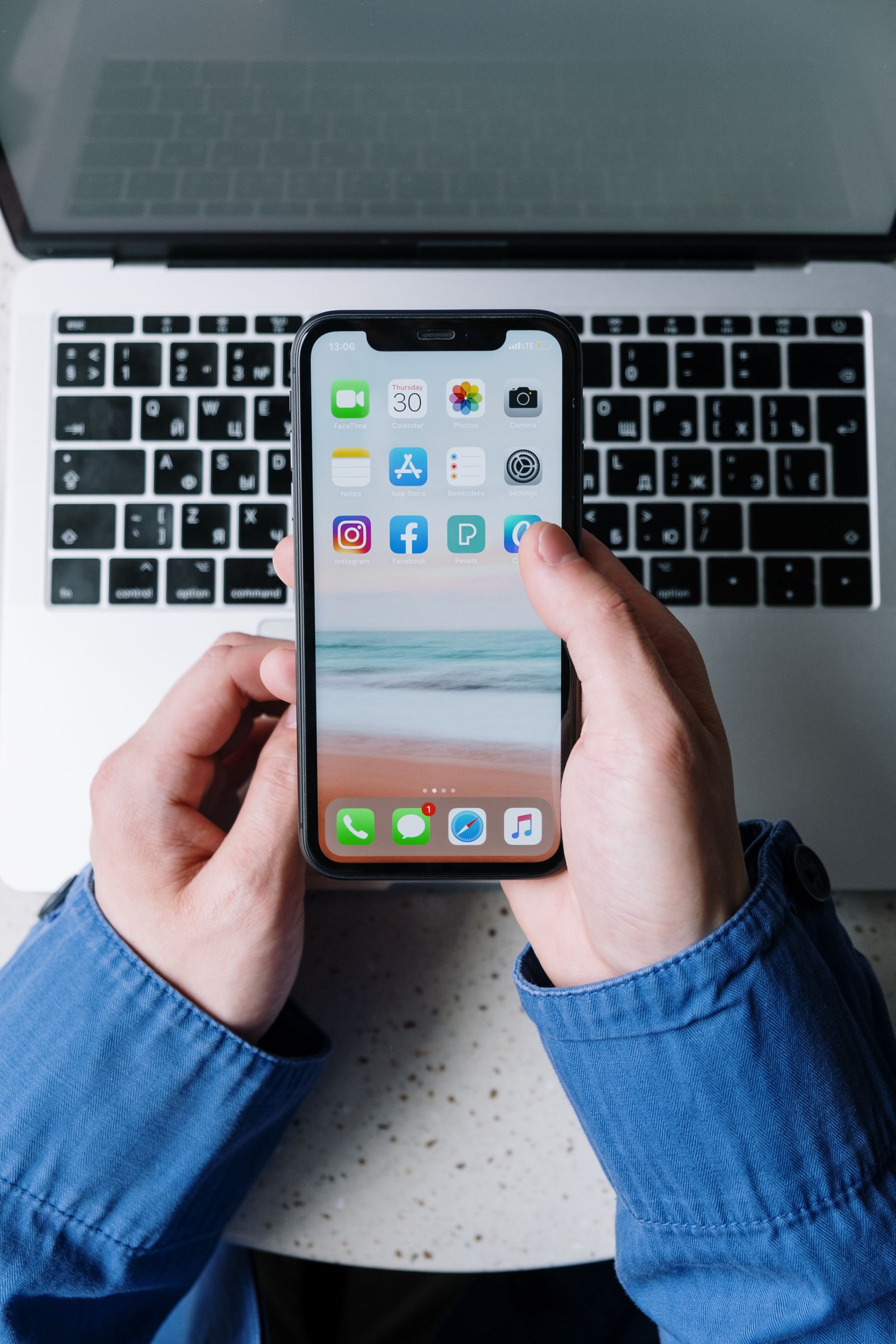
iPhone: make the text bigger
- Open the Settings app. It is the gray icon with gears on it.
- Tap Display & Brightness.
- Tap Text Size.
- Drag the slider to the right. The sample words on the screen grow as you drag.
- Stop when the sample is easy to read, then tap the back arrow. There is no save button — the change is already done.
If you do not see Text Size there: on the newest iPhones, Apple moved this setting. Go back to the main Settings screen and tap Appearance, then Text Size. Everything else in this guide works the same way.
iPhone: if you need even bigger text
If the slider above is already all the way to the right and the words are still too small, there is a second set of even larger sizes:
- Open Settings and tap Accessibility. Accessibility is the part of Settings with tools that make the phone easier to see, hear, and use.
- Tap Display & Text Size.
- Tap Larger Text.
- Turn on Larger Accessibility Sizes. The switch turns green when it is on.
- Drag the slider at the bottom to the right until the words are comfortable to read.
While you are on that same Display & Text Size screen, you can also turn on Bold Text to make every letter thicker.
One caution: at the very largest sizes, words take up more room, and some buttons inside apps can be harder to tap. If that happens, move the slider back one step.
iPhone: make everything bigger, not just the words
- Open Settings and tap Display & Brightness. On the newest iPhones, tap Appearance instead.
- Tap Display Zoom.
- Tap Larger Text.
- Tap Done in the top corner, then tap Use Zoomed.
The screen will go dark for a few seconds while the phone resets its display. That is normal. When it comes back, icons, buttons, and words will all be larger.
Android: Samsung Galaxy phones
Most Android phones in the United States are Samsung Galaxy phones. If yours says Samsung or Galaxy on it, follow these steps.
- Open the Settings app. It is the gear-shaped icon.
- Tap Display.
- Tap Font size and style.
- Drag the Font size slider at the bottom to the right, toward the big letter A. The sample text at the top of the screen changes as you drag.
- On the same screen, turn on Bold font if you want the letters thicker.
The new size starts working right away. There is no save button.
To make everything bigger — icons and buttons too — go back one screen to Display and tap Screen zoom. Drag its slider to the right.
If letters still look faint, open Settings, tap Accessibility, then Visibility enhancements, and turn on High contrast fonts. This draws a dark outline around letters so they stand out against the background.
Android: Google Pixel and other Android phones
If your phone is a Google Pixel, a Motorola, or another Android brand, the wording is a little different:
- Open the Settings app.
- Tap Display. On newer Pixel phones, this menu may be called Display & touch.
- Tap Display size and text.
- Drag the Font size slider to the right until the preview text is easy to read. On most of these phones, the text can go up to twice its normal size.
- To make everything bigger, drag the Display size slider on the same screen to the right.
- Turn on Bold text on the same screen if you want thicker letters.
Can’t find it? Every Android phone has a search box at the very top of the Settings app. Tap the magnifying glass and type Font size. The phone will take you straight to the setting.
If the text is still hard to read
One app did not change. A few apps use their own fixed text size and ignore the phone’s setting. This is normal, and it is not your fault. If one app stays small, open that app’s own settings and look for a text size or display option there.
A web page is small. On an iPhone, open the page in Safari and tap the aA button at the left end of the address bar. Then tap the large A a few times to make the page text bigger.
Reading a menu or a letter on paper. Your phone can work as a magnifying glass. iPhones have a built-in app called Magnifier — look for it in your app list. On Samsung phones, open Settings, then Accessibility, then Visibility enhancements, and look for Magnifier.
How to undo any of this
Nothing in this guide can break your phone. To undo a change, go back to the same screen and drag the slider back toward the middle, or tap the switch again to turn it off. The middle position of each slider is the phone’s original size.
Sources: Apple Support, Samsung Support, and Google Android Help — steps checked November 2026.