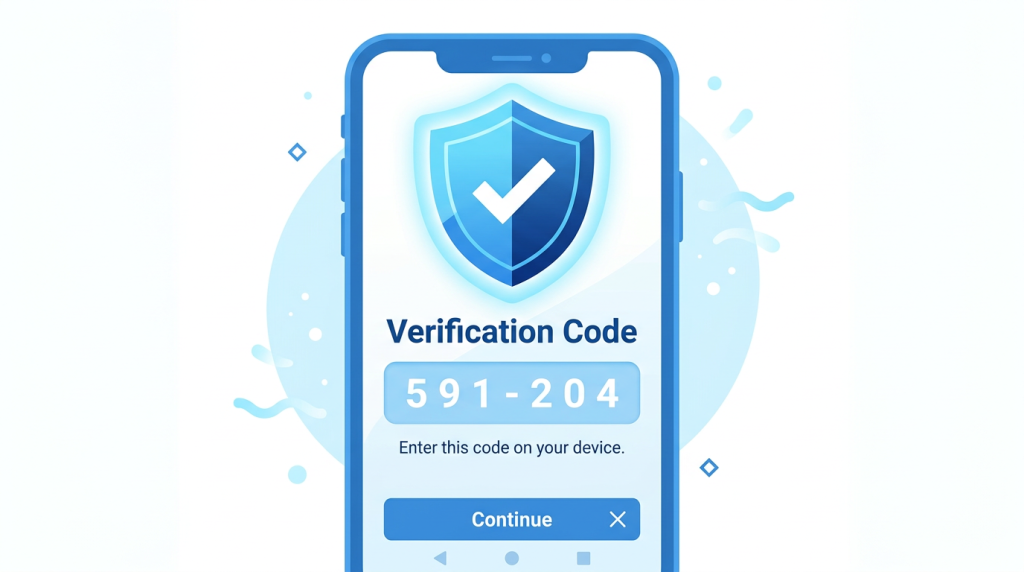

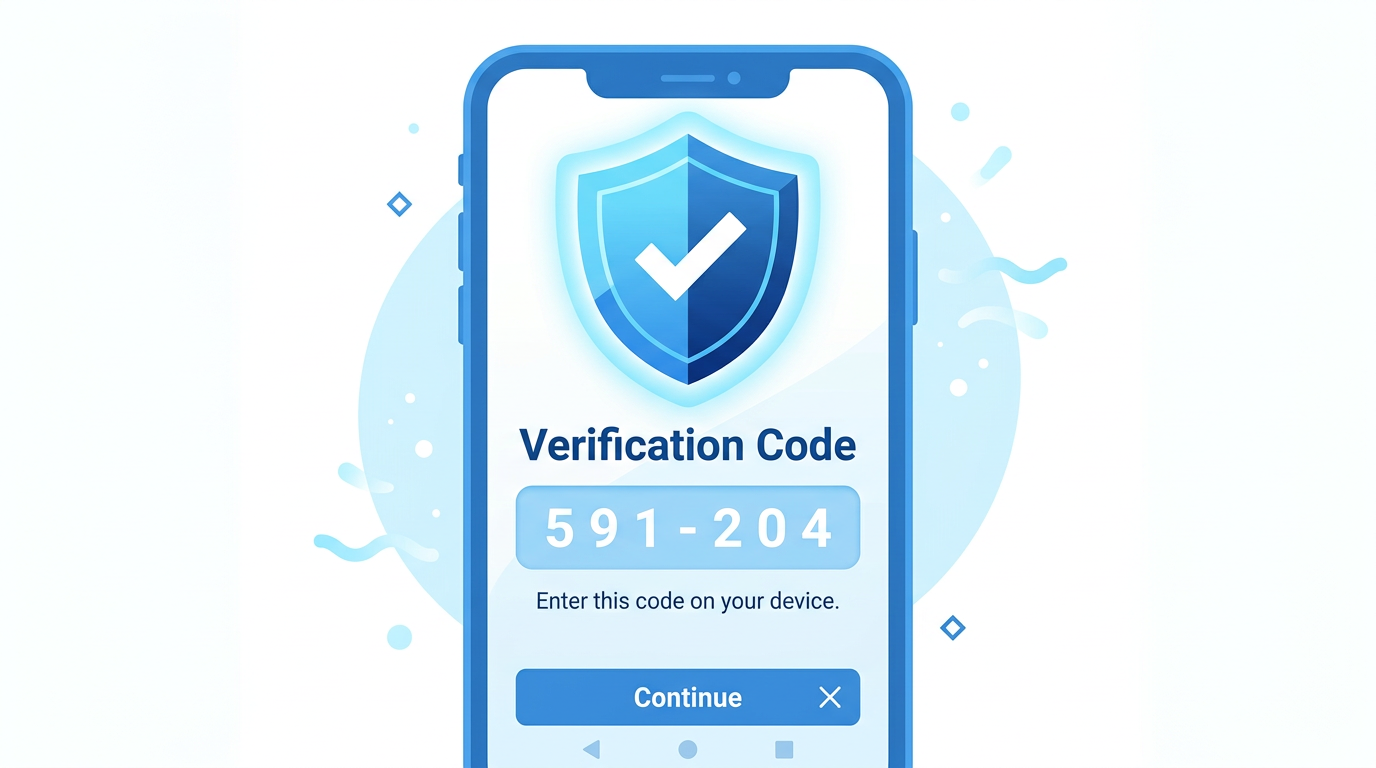
Two-step verification is a second check that proves it is really you. After you type your password, your phone shows you a short code. You type that code in, and only then does the account open.
That extra step is small. It takes less than a minute. And it makes a big difference to your safety.
Why a password alone is no longer enough
Passwords can be guessed, copied, or stolen in a data breach. Many people also use the same password in more than one place, so one leak can open several accounts.
Two-step verification fixes that problem in a simple way. Even if someone learns your password, they still cannot get in without the code on your phone. Your phone stays in your hand, so the code stays with you.
Think of it like a front door with two locks. A password is the first lock. The code is the second lock. Both have to open before anyone can walk in.
Before you start
Keep your phone nearby. You will need it to receive or see the codes.
When you turn this on, the service may give you recovery codes. These are backup codes for the day you lose your phone or get a new one. Write them on paper and store them safely at home, in a drawer or notebook you can find again. Do not store them on your phone, and do not share them with anyone.
Never share a code with anyone who calls or texts you. A real company will never ask you to read a code out loud on the phone. If someone asks for your code, that is the scam itself. You can learn more in our guide, How to Spot a Scam Text Message.
Set this up at home, when you are not rushed. Do one account at a time. Start with your email, because your email can reset many other accounts.
Gmail and your Google account
Your Gmail account is the key to many other services, so protect it first.
- Open the Gmail app, or go to myaccount.google.com in your browser.
- Tap your profile picture or your initial in the top corner, then tap Manage your Google Account.
- Tap Security on the left or at the top.
- Under “How you sign in to Google,” tap 2-Step Verification.
- Tap Turn on 2-Step Verification and sign in again if asked. Google will check that it is you.
- Choose how to get codes. Google will usually offer a code by text message to your phone number first. Confirm your number, enter the code Google sends you, and tap Turn on.
- Save the recovery codes Google shows you. Write them on paper and keep them safe at home.
From now on, when you sign in to Gmail on a new device, Google will send a code to your phone. Type it in, and you are in. On devices you use every day, Google will usually remember them, so you will not be asked every time.
Apple ID on your iPhone
On an iPhone, two-step verification for your Apple ID is called two-factor authentication. Apple turns it on in a slightly different place.
- Open Settings on your iPhone.
- Tap your name at the very top of the screen.
- Tap Sign-In & Security.
- Tap Two-Factor Authentication.
- Tap Turn On Two-Factor Authenticatio
Discover more from 컴퓨터와 친구들
Subscribe to get the latest posts sent to your email.