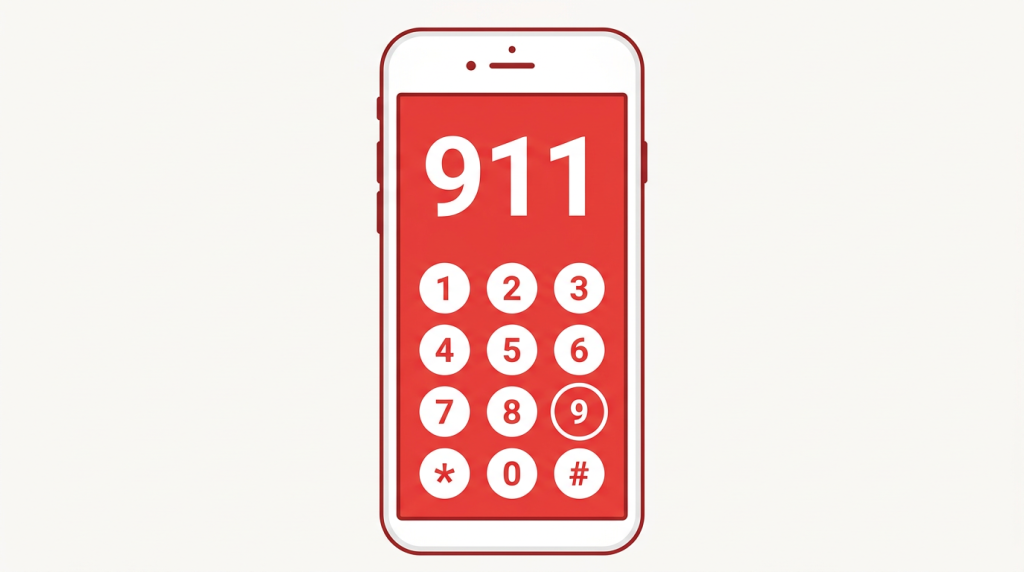

In an emergency, your phone can call for help and show responders your allergies, medications, and emergency contacts — even when your phone is locked. Setting this up takes about ten minutes. Do it today, while you are calm and at home.
This guide walks you through it step by step, first on iPhone, then on Android. You do not need any extra apps. Everything is already on your phone.
1. Why this matters
Imagine you fall, or you feel very unwell, and you cannot speak clearly or unlock your phone. Emergency SOS lets your phone call for help with a few button presses. Medical ID lets a paramedic or a doctor see your key health information right on your lock screen — your allergies, the medicines you take, and the people to call.
That information can save critical minutes. A responder who knows about an allergy or a blood thinner can make safer choices faster. A family member who is listed as an emergency contact can be reached right away.
You do not need to share everything. You choose what to put in. A few clear facts are enough: allergies, main medicines, and one or two emergency contacts.
2. iPhone: set up Medical ID
Medical ID lives in the Health app. Here is how to fill it in:
- Open the Health app on your iPhone.
- Tap your profile picture or your initials in the top-right corner.
- Tap Medical ID.
- Tap Edit in the top-right corner.
- Add your conditions, allergies, and medications. Keep it short and clear — for example, “Allergic to penicillin” or “Takes blood thinner.”
- Add emergency contacts. Tap Add Emergency Contact, choose a family member or close friend from your contacts, and choose their relationship to you, such as “daughter” or “spouse.”
- Turn on Show When Locked. This is the most important switch. Without it, responders cannot see your Medical ID when your phone is locked.
- Tap Done.
Tip: if the text on these screens looks small, make it bigger first. See our guide, How to Make Text Bigger on Your Phone.
3. iPhone: Emergency SOS
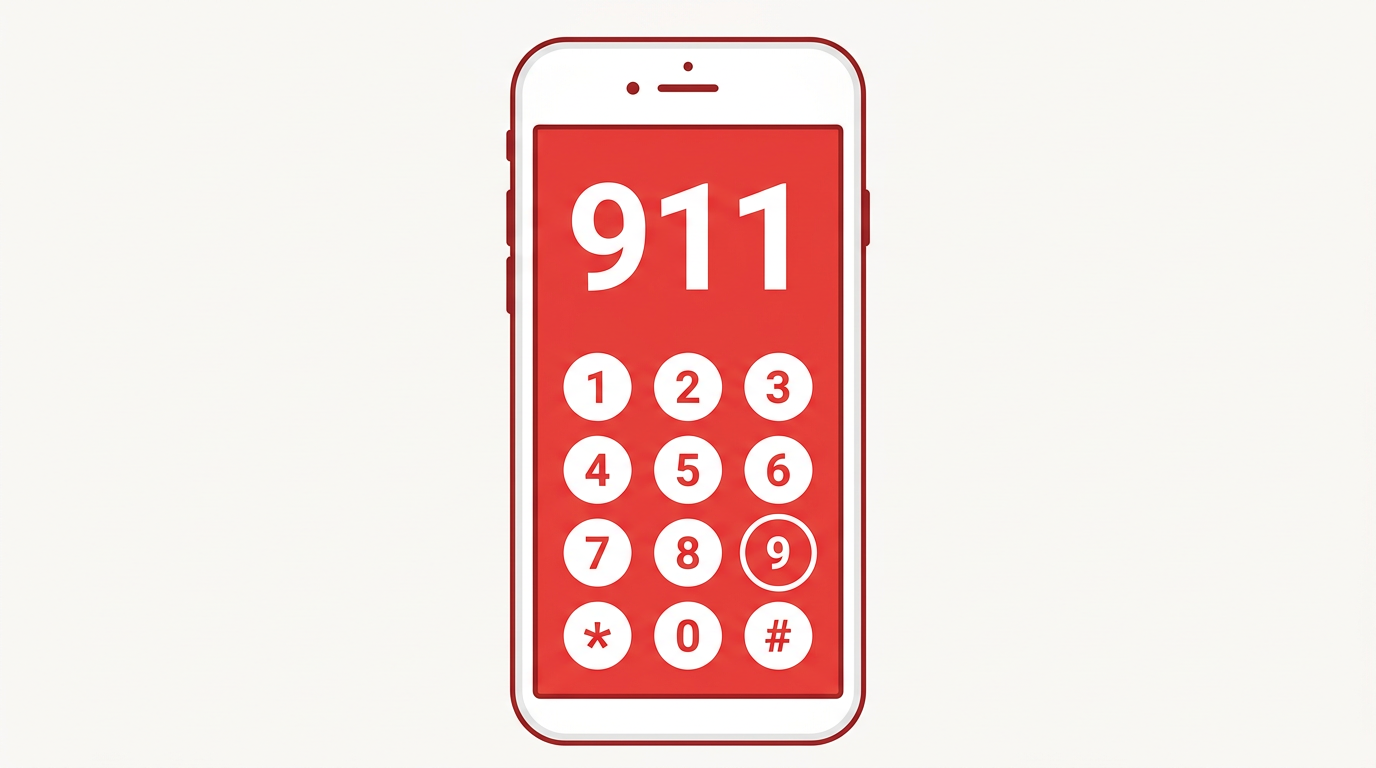
Emergency SOS is the button combination that calls for help. In the United States, Emergency SOS calls 911.
- Open Settings.
- Tap Emergency SOS.
- Look at the options. You can turn on Call with Hold and Release: press and hold the side button and a volume button together, and your phone will call emergency services. You can also turn on Call with 5 Button Presses: press the side button five times quickly.
- Choose the option that feels easiest for you. Both work. Pick one, and remember it.
- Check that Countdown Sound is on, so you will hear a warning sound before the call starts. That gives you a few seconds to cancel if you pressed the buttons by mistake.
Do not test this by placing a real call. You can practice the button presses and stop at the countdown screen. If a call ever goes through by mistake, stay on the line, explain that it was an accident, and apologize. Do not hang up without saying anything.
Keeping your accounts safe is part of the same picture. If you have not already turned on two-step verification for your email
Discover more from 컴퓨터와 친구들
Subscribe to get the latest posts sent to your email.