
If you find yourself squinting at your phone, holding it at arm’s length, or reaching for reading glasses just to check a text message, you are not alone. The good news: both iPhone and Samsung Galaxy phones have built-in settings that make text bigger in just a minute or two. No new app, no cost, and you can change it back any time.
This guide walks you through each step slowly. Pick the section for your phone below.
On an iPhone: Make the Text Bigger
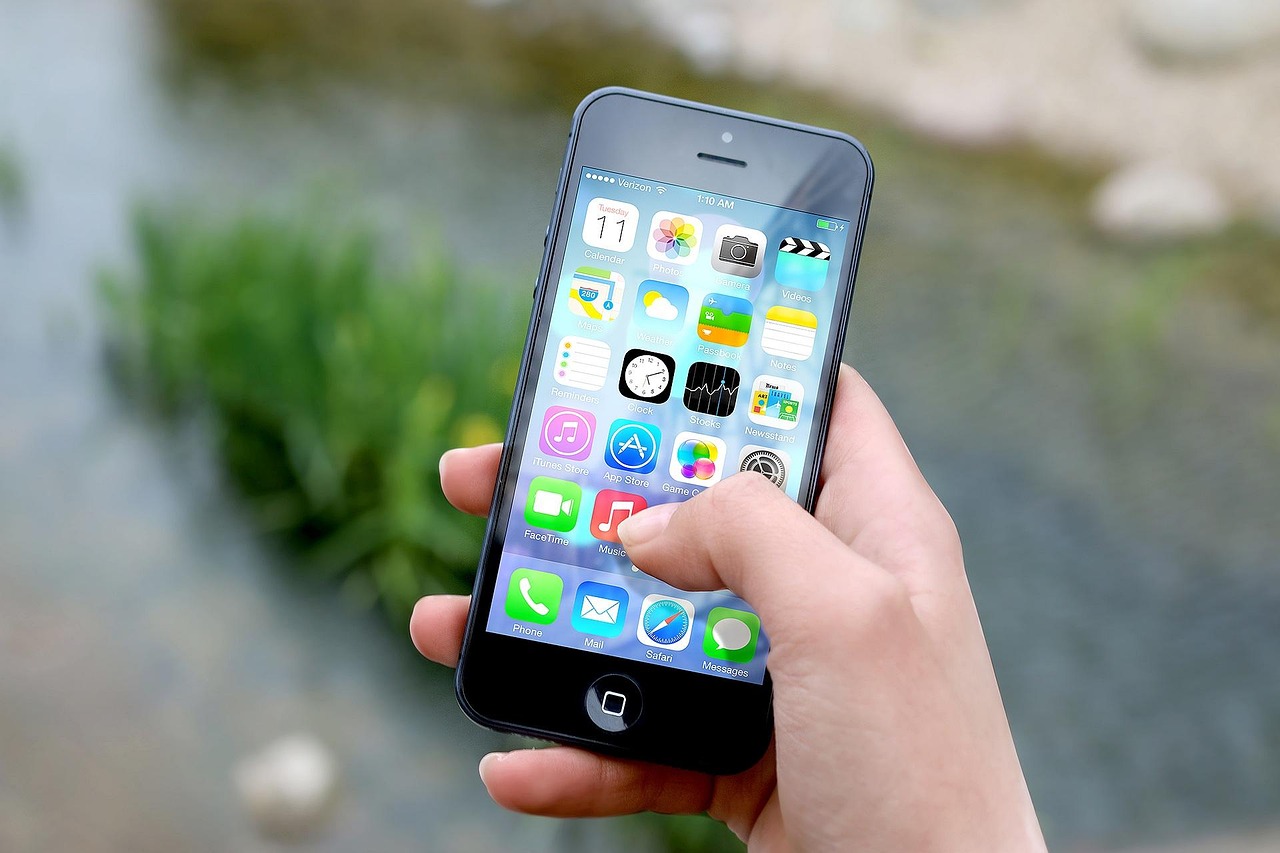
Step 1: Open the Larger Text setting
1. Tap the Settings app (the gray gear icon).
2. Tap Accessibility.
3. Tap Display & Text Size.
4. Tap Larger Text.
Step 2: Move the slider
Drag the slider at the bottom toward the right to make text bigger. The sample text above the slider changes as you drag, so you can stop at a size that feels comfortable. If you need even bigger text, turn on the Larger Accessibility Sizes switch at the top — this adds extra, larger steps to the slider.
Quick shortcut: you can also open Settings > Display & Brightness > Text Size and move the same slider there. (On the newest iPhones this is under Settings > Appearance > Text Size.)
Step 3 (optional): Make text bold
Back on the Display & Text Size screen, turn on Bold Text. Letters become thicker and darker, which many people find easier to read even without making them bigger.
On a Samsung Galaxy: Make the Text Bigger
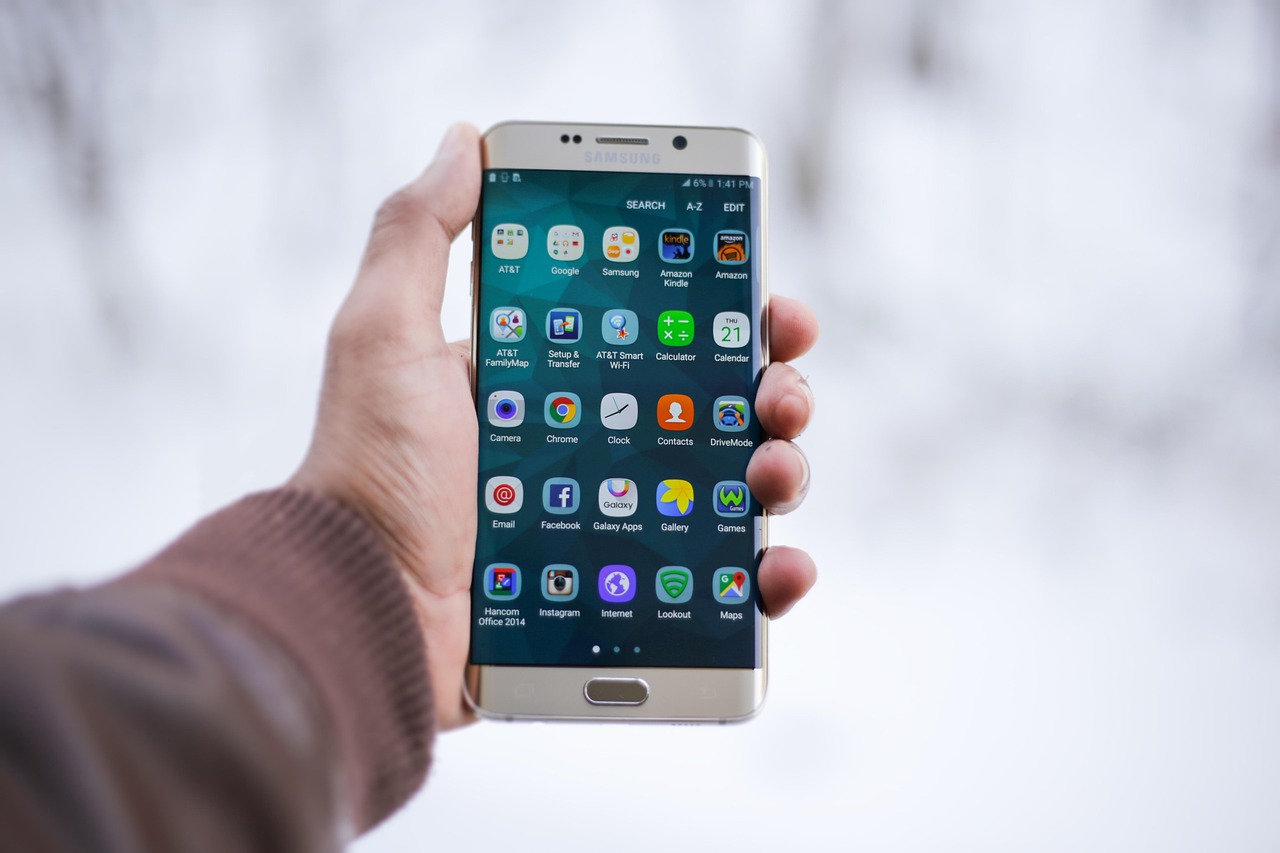
Step 1: Open Font size and style
1. Open the Settings app.
2. Tap Display.
3. Tap Font size and style.
Step 2: Move the Font size slider
Drag the Font size slider to the right. A preview at the top of the screen shows how your text will look. On this same screen you can also turn on the Bold font switch to make letters thicker and easier to read.
One thing to know: Samsung notes that the very largest font size works only in certain apps, so if one app still looks small, that is normal — the Screen zoom step below usually fixes it.
If Text Still Looks Small: Make Everything Bigger
Font size changes letters only. If buttons, icons, and pictures still feel small, these settings enlarge everything on the screen:
iPhone — Display Zoom: go to Settings > Display & Brightness, scroll down to Display Zoom, tap Larger Text, then tap Use Zoomed. Your phone will restart its screen for a moment, and everything will appear bigger.
Galaxy — Screen zoom: go to Settings > Display > Screen zoom and move the slider toward the plus (+) side. Icons, buttons, and text all grow together.
Make Just One App Bigger (iPhone Only)
If only one app is hard to read — for example, your email — an iPhone lets you change that app by itself:
1. Open Settings > Accessibility and scroll to the bottom.
2. Tap Per-App Settings, then Add App, and choose the app.
3. Tap the app in the list, tap Larger Text, and move its slider.
Samsung Galaxy phones do not have a per-app text setting, so on a Galaxy use the font size and screen zoom steps above.
One Small Caution

At the very largest sizes, some apps may show less on each screen, and you may need to scroll a little more. That is normal and harmless. If anything looks wrong, just move the slider back — none of these settings can break your phone.
Quick Questions
Will this make text bigger in every app?
In most apps, yes. A few apps use their own fixed text size; for those, check the app’s own settings, or use Display Zoom / Screen zoom, which enlarges everything.
Does bigger text use more battery?
No. Text size does not affect battery life.
Can I make the keyboard bigger too?
Yes — Display Zoom on iPhone and Screen zoom on Galaxy also make the keyboard keys bigger, which makes typing easier.
More guides for your phone:
• How to Turn On Two-Step Verification for Your Email and Bank Apps
• How to Set Up Emergency SOS and Medical ID on Your Phone
Discover more from 컴퓨터와 친구들
Subscribe to get the latest posts sent to your email.